
If your blog post published successfully to some social media platforms but did not appear on another, the social media connection or post settings may need to be checked.
Follow the steps below to troubleshoot the issue and get your blog post published.
I. Check Your Blog Post Settings
First, make sure social sharing is enabled for the platform where the post did not publish.
- From your website dashboard, go to My Content.
- Select Blog.
- Find the blog post and click Edit.
- Scroll to the bottom of the blog post and review the "Author Details & Scheduling Post" section. Confirm that the blog is not scheduled to post at a future date.
- Make sure the blog has been approved if you have compliance.
- Important: The social media toggle automatically turns OFF after you click Save on an individual blog post. This is expected behavior. If you need to publish or republish the blog post to social media, make sure the affected platform is toggled ON again before proceeding.
II. Check Your Social Media Connection
If you have multiple social media profiles connected to your website, make sure the correct profile is selected and connected.
- Go to Site Settings → Social Media Accounts.
Find the affected social media account and confirm that it is connected to your website.
Reconnect Your Social Media Account
- Sometimes a social media platform's authorization session can expire. When this happens, new blog posts may stop publishing even though other connected social media platforms continue to work.
If the connection needs to be refreshed, follow these steps⤵️:
- Go to Site Settings in your website dashboard.
- Select Social Media Accounts.
- Locate the affected social media account.
- Click Disconnect, if it's not already disconnected.
- Select Connect or Reconnect.
- Follow the prompts to sign in and authorize the account again.
After reconnecting the account, allow approximately 5–10 minutes for the connection to update before proceeding.
- Important: Reconnecting your account refreshes the connection between your website and the social media platform. It does not remove your existing social media profile or previously published posts..
Connection Expiration Notifications
If your social media connection expires, Snappy Kraken will send you an email notification letting you know that the connection needs to be refreshed.
Below a screenshot example of a notice:
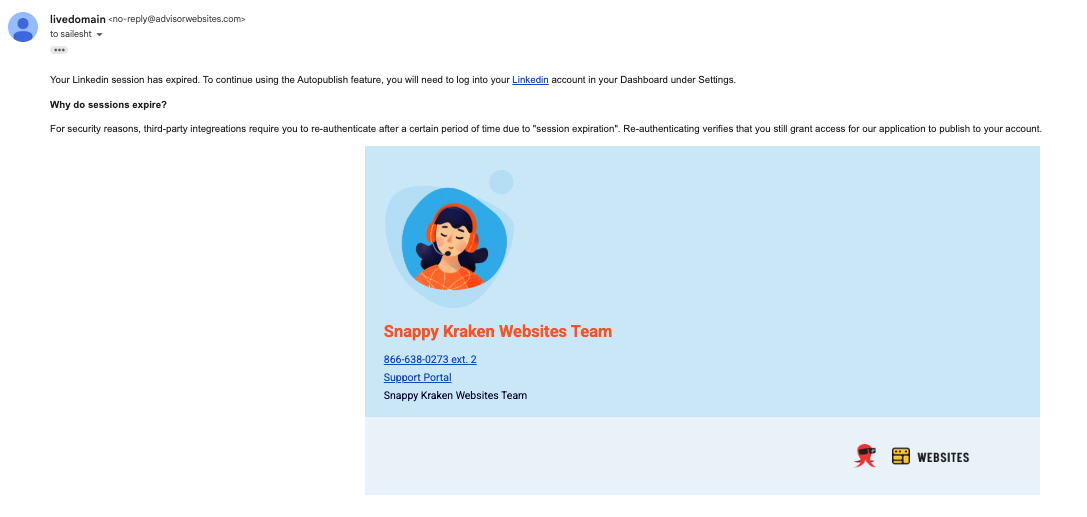
If you receive this notification, reconnect the affected social media account using the steps above.
III. Check X (Formerly Twitter) Character Limits
If your blog post is not publishing to X (formerly Twitter), the issue may be related to the character limit for X Free accounts.
- X (Formerly Twitter) Free accounts have a 280-character limit for blog posts. If the content being shared exceeds this limit, the post may not publish even if your X account is properly connected.
If you're experiencing this issue with X, review the content being shared and consider shortening it before trying to publish the blog post again.
- Helpful Tip: If your blog post publishes successfully to other social media platforms but not to X, check both the account connection and the character limit.
IV. Republish Your Blog Post
Once the social media connection has updated:
- Go back to My Content → Blog.
- Click Edit on the blog post.
- Scroll to the social media sharing options.
- Make sure the affected social media platform is toggled ON.
- Republish the blog post to the affected platform.
If you would prefer our Support team to republish the post for you, simply let us know after reconnecting the account and allowing 5–10 minutes for the connection to update.
Once the post has been republished, please allow up to 24 hours for it to appear on the social media platform.
- Helpful Tip: If publishing suddenly stops working on one social media platform while your other connected platforms continue to work, checking the social media toggle and reconnecting the affected account are good first steps.
Frequently Asked Questions
Why did my blog post publish to some social media platforms but not another?
- Each social media platform has its own connection and publishing requirements. If one platform's connection needs to be refreshed, your blog post may continue publishing to other connected platforms while being unable to publish to the affected platform.
How will I know if my social media connection has expired?
- Snappy Kraken sends an email notification when a connected social media account's connection expires. If you receive this notification, reconnect the affected account through Site Settings → Social Media Accounts.
Will reconnecting my account delete my existing social media posts?
- No. Reconnecting your account refreshes the connection between your website and the social media platform. It does not remove your existing profile or previously published posts.
Why isn't my blog post publishing to X?
- If you're using an X Free account, check whether the content being shared exceeds the 280-character limit. If the content is within the limit, make sure your X account is connected and authorized.
How long should I wait after republishing my blog post?
- Please allow up to 24 hours for the blog post to appear after it has been republished.
What if my post still doesn't appear after 24 hours?
- If your blog post still has not appeared after 24 hours, please contact our Support team so we can investigate the issue further.
Need help?
If you need assistance setting up or verifying your social media connection, please submit a support ticket with details about the issue and your account information.